Information about the Hostjob UserLimit
Did you know that it is possible to limit the number of records being processed via a host (print) job?
It happens that users are processing a Host Print or Host Job without having selected any subset or records to be processed. In that case the system uses “(all records)” as the standard subset.
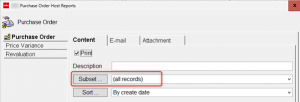
This may cause issues when all records are being processed.
Within the application object “Host Process Settings” it is possible to define limits on the records that may be processed by the Host Print or Host Job resulting in errors or warnings. The Icon ‘Host Process Settings’ is available on the “Environment” application card. In case it is not available it can be added:
Customize > Cards > Select Settings and click the Change button (pencil) > On the left side for Available Objects, find Host Process Settings > Move it to the right (selected) with the button in the middle. Click Apply.
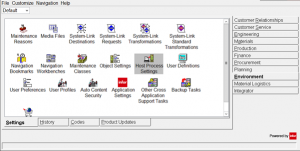
All Infor and user owned host job and report objects will be available.
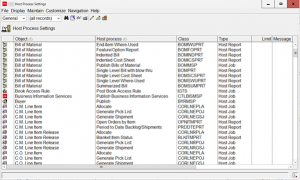
Per host process the following properties can be maintained:
- Limit – the maximum number of records to be selected
- Message type – Error, Warning or none.
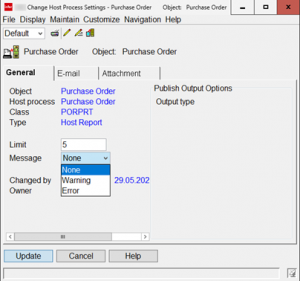
None: No message will be displayed and processing will continue as normal.
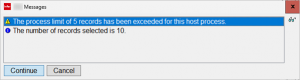
Warning: The message window will be displayed, but it will allow for a Continue button to be clicked to process the records anyway. The Cancel button stops the processing.
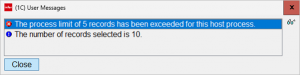
Error: The message window will be displayed. The only option available to the user is a Close button to close the window. No records can be processed.
All details are explained in the article in the Infor’s Knowledge Base (KB) articles KB1396223 and KB1987430.
For help just contact our MJR team!